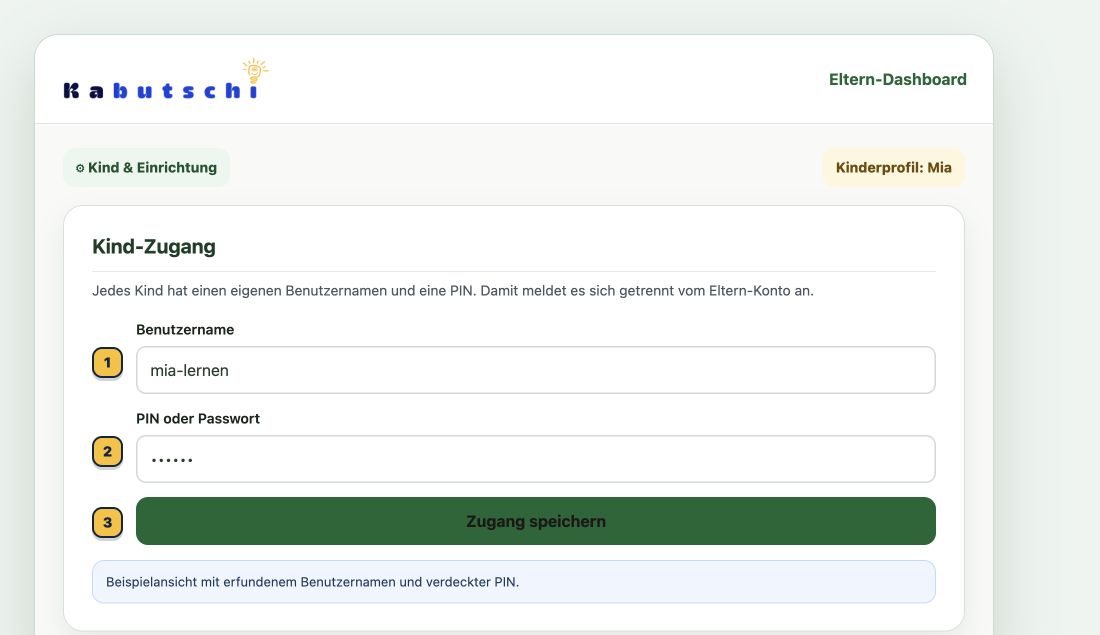
Open Child & setup in the parent area. Select your child, create a username and PIN under Child login, and save the login. Your child then signs in at kabutschi.de/kind.
What you need
- A Kabutschi parent account
- An existing child profile
- An available username
- A PIN with 6 to 8 digits
1. Create the login in the parent area
- Sign in to the parent area.
- Open Child & setup.
- Select the child whose login you want to create.
- Scroll to Child login.
- Enter a username and a PIN with 6 to 8 digits.
- Select Save login.
2. Log the child in on their device
- Open www.kabutschi.de/kind on the child's device.
- Leave the Benutzername tab selected. This means Username.
- Enter the username you saved in the parent area.
- Enter the PIN.
- Select Anmelden & üben. This means Log in and practise.
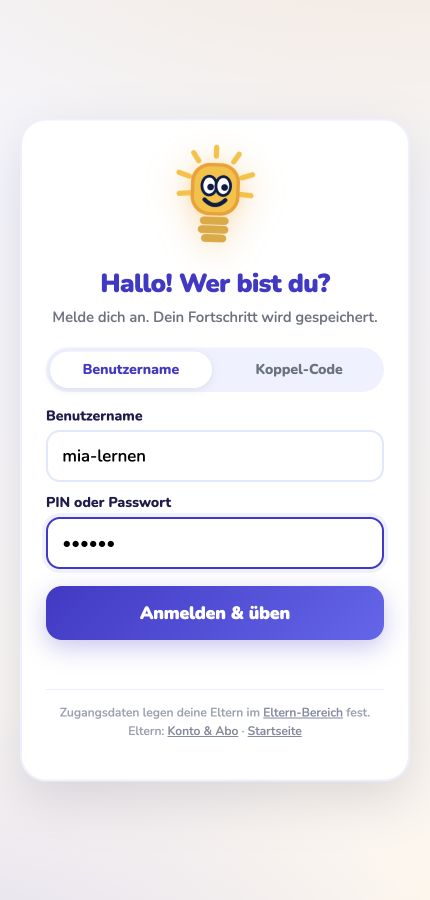
- Enter the username in Benutzername.
- Enter the PIN in PIN oder Passwort.
- Select Anmelden & üben.
The child login screen currently uses short German labels. The screenshot shows the real Kabutschi login page with a fictional username and a hidden example PIN. No login was performed. Open the full-size image.
3. Done
Your child can start
After login, Kabutschi opens the correct child profile. Learning progress is saved to that profile. On the child's own device, the session normally stays signed in.
Shared device? Sign the child out before another child uses the same browser.
If something does not work
The username or PIN is not accepted
Check the spelling of the username and enter the PIN again. You do not need capital letters in the username.
The PIN was forgotten
Open Child & setup in the parent area, select the child, and save a new PIN under Child login.
The username is already taken
Choose another name with 3 to 32 characters. Lowercase letters, numbers, dots, underscores and hyphens are allowed.
Do I need the QR code?
No. The QR code is a one-time alternative for connecting a device. If scanning is unavailable, use the six-digit code shown below it. You do not need either for the normal username and PIN login.
I need personal help
Email us at support@kabutschi.de. Never send your child's PIN by email.
Set up the child login now
Start in the parent area. Your child can then use their own login page.