See what data Kabutschi shows for your child, what each number means, and where you manage settings.
1Today
2Child & setup
3Exams
4Progress
5Rewards
6Account
The short answer
You can see learning time, completed tasks, accuracy, streaks, exams, recommendations, reading progress, and rewards. You can also manage child profiles, devices, login details, your account, and your subscription.
🔒
About the images: They were created from the real Kabutschi interface. Names, school, email address, learning values, and payment data are fictional examples.
1 · Daily overview
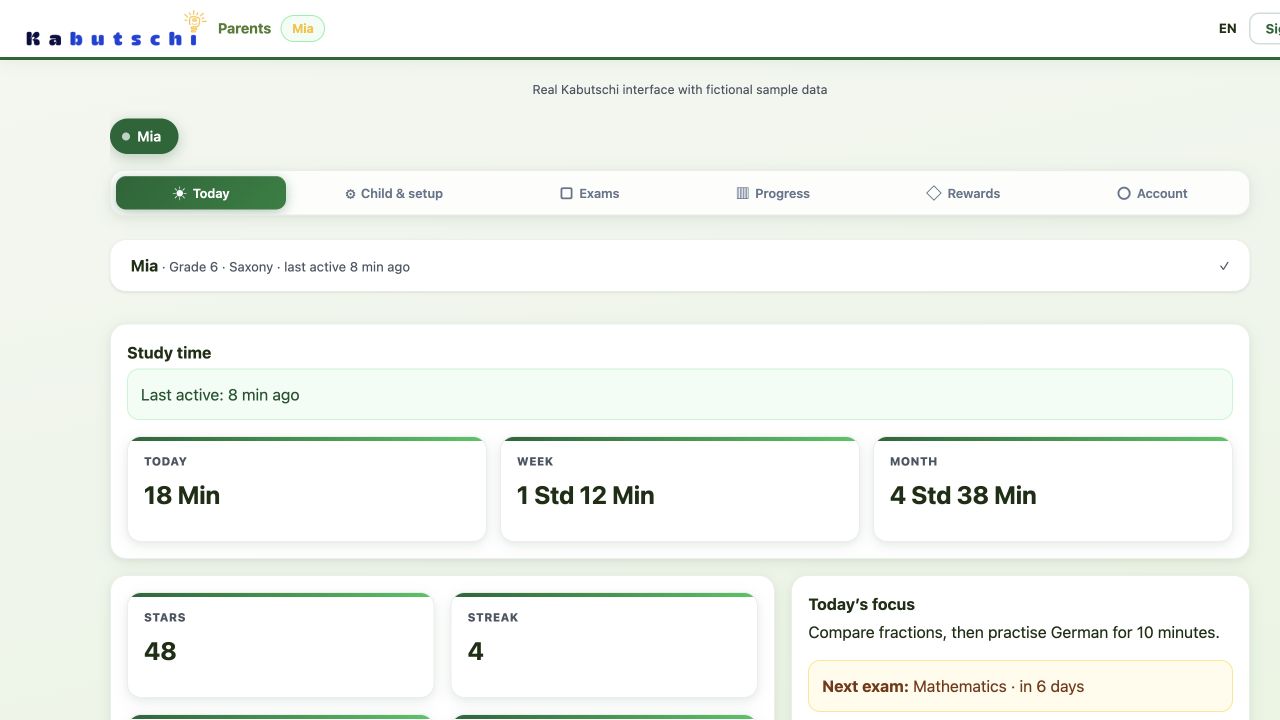
Today: the essentials at a glance
Select a child at the top. Kabutschi will then show data for that child profile only.
Learning timeToday, this week, this month, and this year.
Learning activityLast activity, stars, streak, correct answers, and weekly accuracy.
Next stepNext exam, current recommendation, and reward goal progress.
Today: The quick family overview for the selected child. Open the full-size image.2 · Profile and access
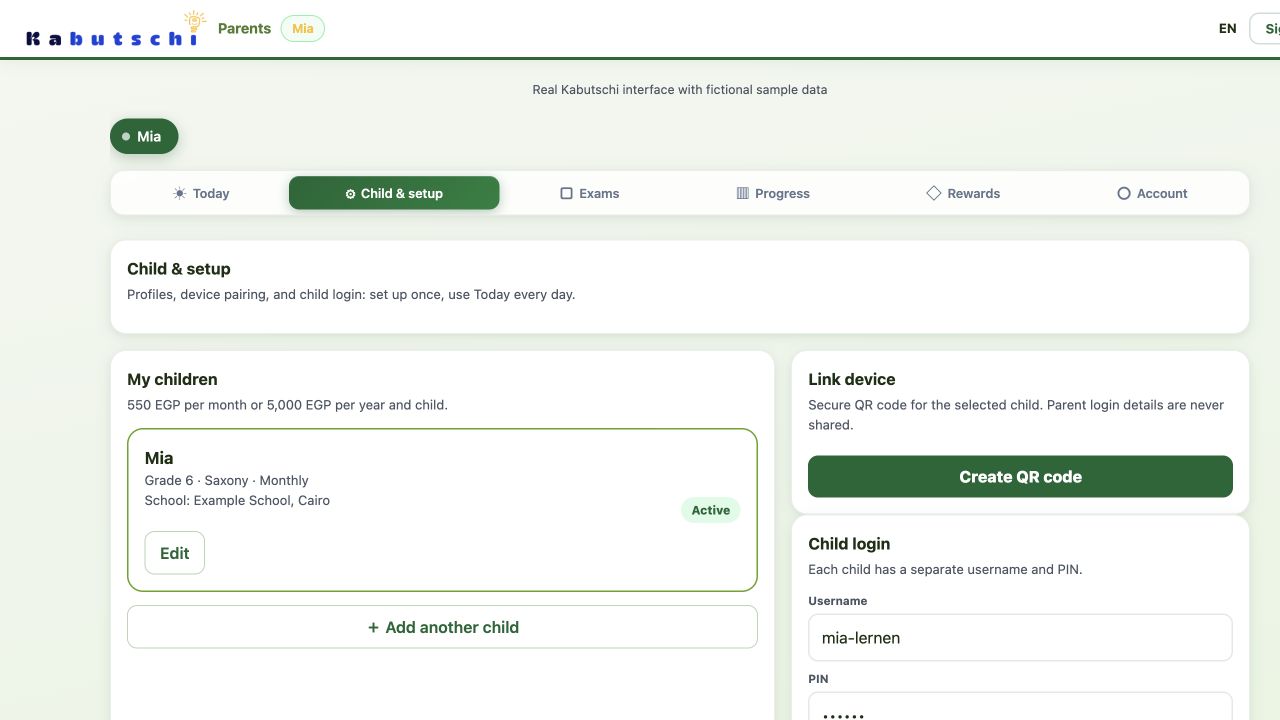
Child & setup: profile, school, and device
Manage your child's basic details and secure access here.
Child profileName, grade, curriculum, school, plan, and status.
Learning subjectsChoose which subjects the child can use in Kabutschi.
AccessPair a device with a QR code, or manage the child's username and PIN.
Child & setup: These details decide which child, grade, and curriculum receive each exercise. Open the full-size image.3 · Preparation
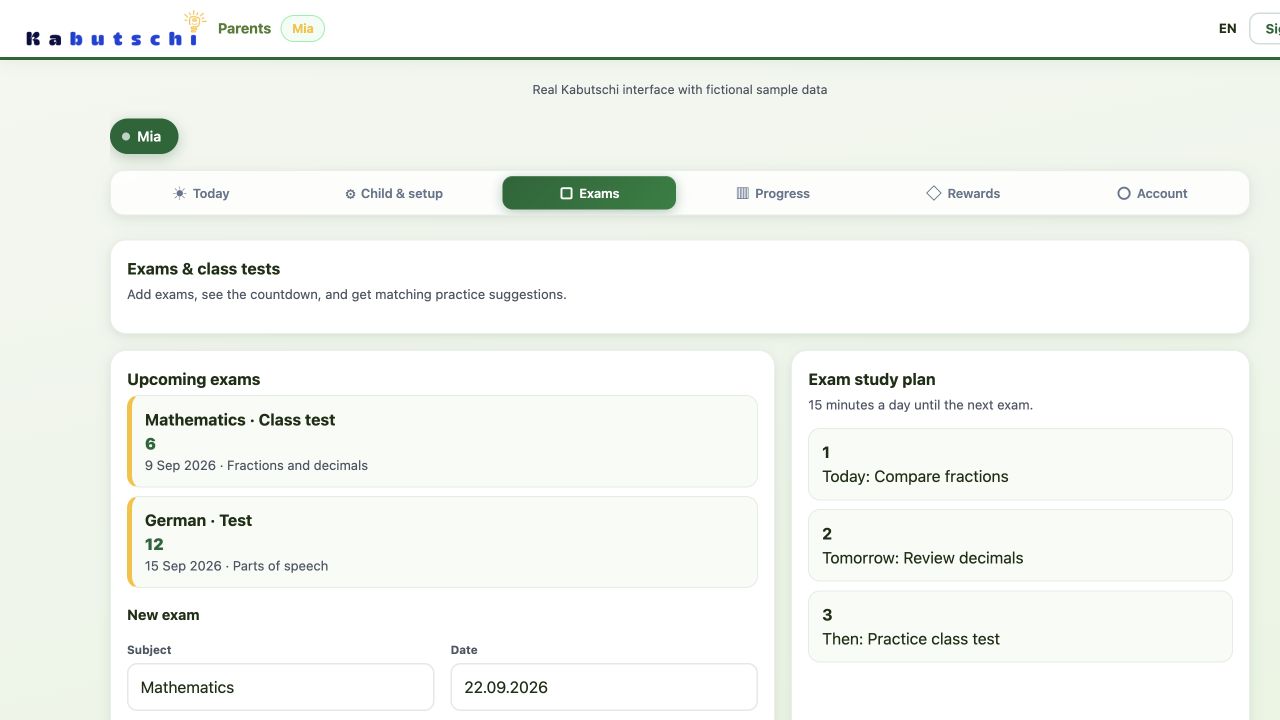
Exams: dates and study plan
Add upcoming exams and see how much preparation time remains.
Exam detailsDate, subject, exam type, topics, and your own notes.
CalendarAll saved exam dates in chronological order.
Study planKabutschi spreads suitable preparation steps across the days before the exam.
Exams: The exam date connects your selected topics with daily preparation. Open the full-size image.4 · Learning development
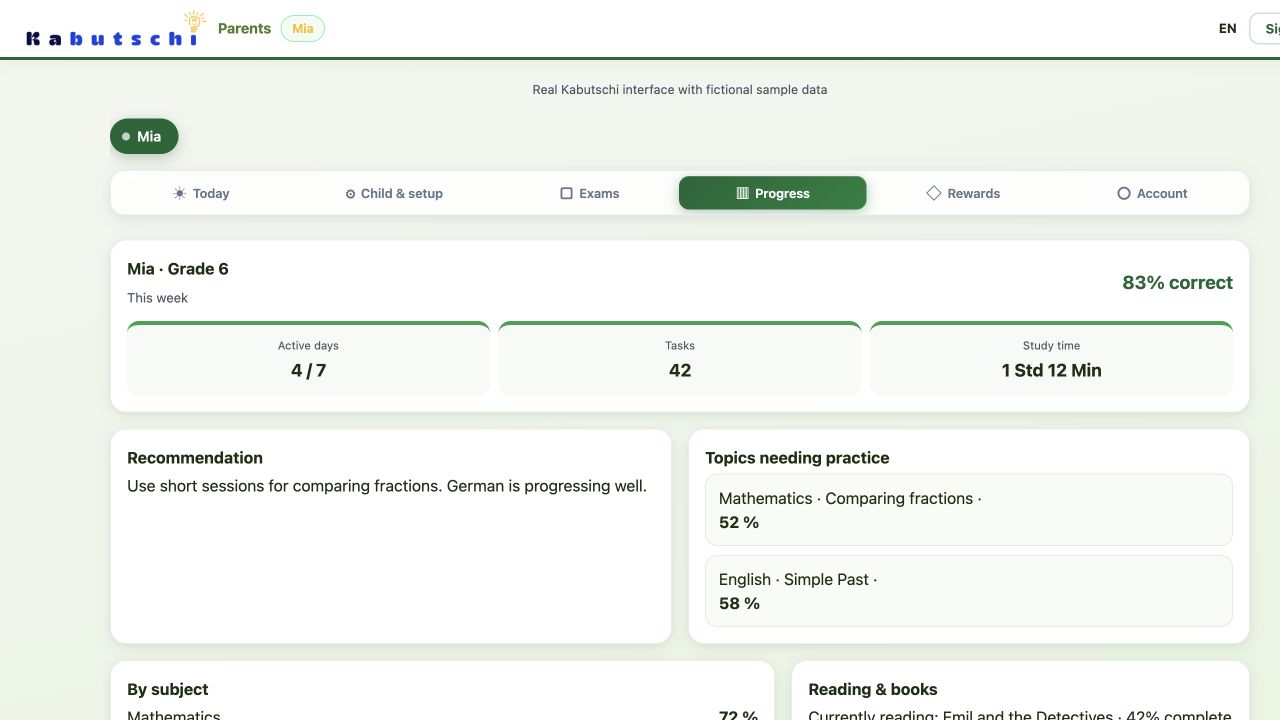
Progress: activity, strengths, and gaps
See how regularly your child practises and where extra support may be useful.
Weekly figuresActive days, tasks, learning time, and accuracy for the current week.
Topic overviewResults by subject and topic, including weaker areas.
Other learning recordsCoach recommendation, reading progress, practice tests, and weekly report.
Progress: One percentage is only a snapshot. Look at the trend across several practice days. Open the full-size image.5 · Motivation
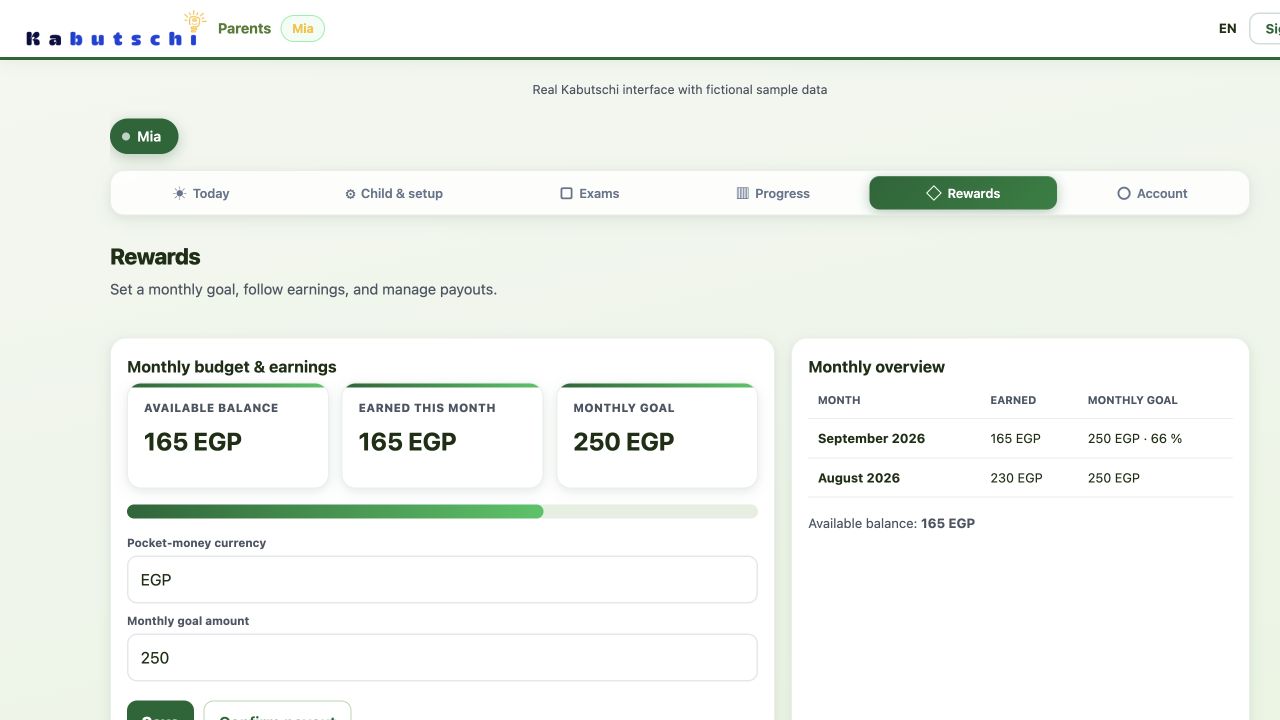
Rewards: goal and payout
You decide whether learning stars become a family reward. Kabutschi does not pay money to the child.
Monthly goalYour chosen target amount and current progress.
Earned and outstandingThe reward already earned and the amount still awaiting confirmation.
HistoryFamily payouts you confirmed in earlier months.
Rewards: This is an optional agreement between parent and child, not a payout from Kabutschi. Open the full-size image.6 · Family and payment
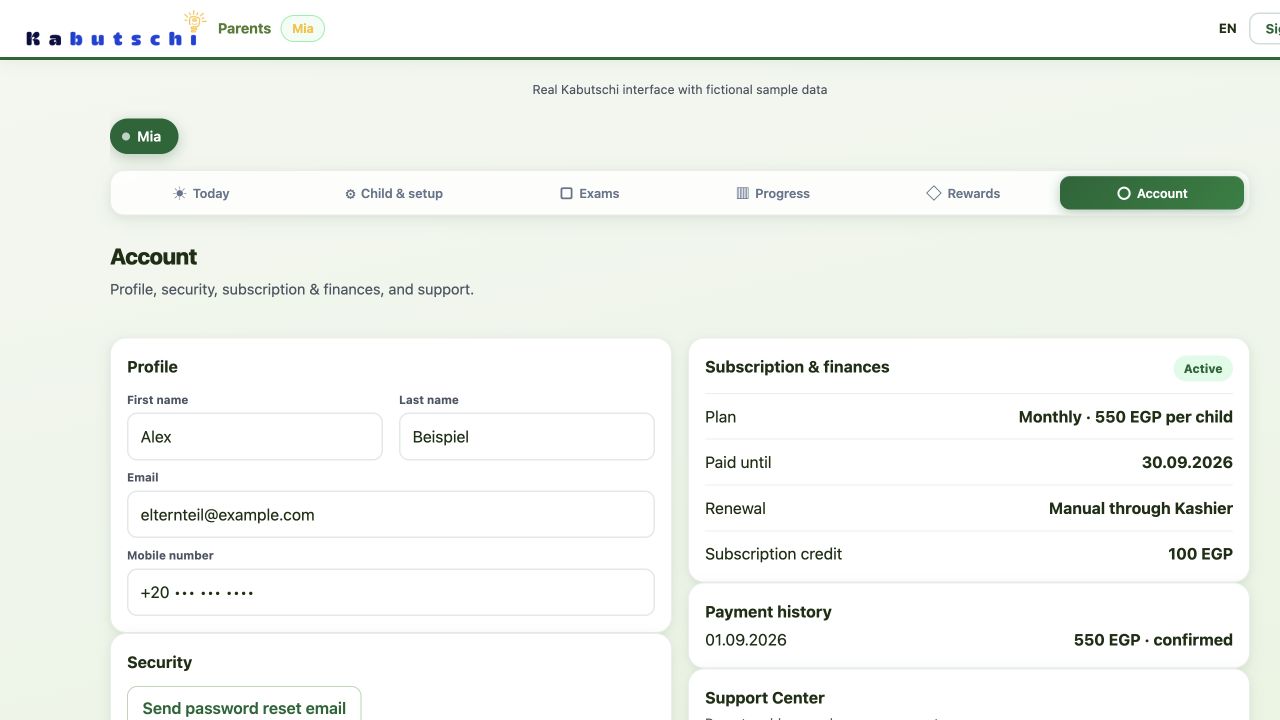
Account: profile, security, support, and subscription
This tab brings together the parent account details and payment information.
Profile detailsName, email address, mobile number, password reset, and email preferences.
SupportCreate a request and review your previous requests.
Subscription and paymentPlan, status, amount, end date, credit, referrals, and payment history. Payments are handled through Kashier.
Account: Check your subscription status and end date here. You can pay for a renewal securely through Kashier. Open the full-size image.
Open the parent area
Sign in, choose your child, and open the section you need. If something is missing or looks wrong, we will help you directly.